
Home > How to test if Proactive Chat is working
Categories: Getting Started | Proactive Chat
(Last Updated On: February 7, 2019)
If your Proactive Chat doesn’t seem to be working, this guide will help you diagnose and understand the issue. This doc covers the most common pitfalls and points of confusion when Proactive Chat isn’t working.
As it will also be mentioned right below, when you test Proactive Chat, it is best that you use a Google Chrome “Incognito” window, a Firefox / Safari “Private Browsing” window, an IE “InPrivate Browsing” or similar. That way, SnapEngage will see you as a fresh new visitor and will engage you based on the rules you have set.
The most common issues:
1. The Proactive Chat Delay Cookie
- SnapEngage prevents Proactive messages (pop ups) from firing for 30 minutes in this example (or whatever time you designate based on the Proactive settings) after a visitor clicks the “Close” button on a chat form.
- This is to avoid harassing your visitors with repeated Proactive messages when they are not interested in chatting, or when they have just finished chatting.
- This cookie is configurable in your Proactive Chat settings tab of the Admin Dashboard ( Settings > Proactive tab):

To test your Proactive Chat: Visit your site in a Chrome “Incognito” window, a FireFox “Private Browsing” window, or similar — or clear your browser’s cookies https://help.snapengage.com/how-to-clear-the-cache-on-your-browser/. Doing this will make you look like a brand new visitor to your website, so there will be no Proactive Chat Delay Cookie.
2. Not being online / Not being available
- Proactive messages (pop ups) will not fire if you have no agents online and set to “available” in the Conversations Hub, or if chat is unavailable.
- Proactive chat will not fire if all of your agents are maxed out with chats despite the free slots in your “queue”.
- Check the availability of chat on a widget by hovering over the bead in your Admin Dashboard (pictured below).
If the bead is yellow: Hover your mouse over the bead for more information about why your chat is offline. You can see the widget is paused in the image below. The reason it is paused is due to agents not being online and set to “available” in the Conversations Hub.

3.Proactive chat is not enabled
In the Admin Dashboard, in the “Settings” > “Proactive Chat” tab: Make sure that the box next to ‘Enable proactive chat when a Chat Agent is online‘ is checked and selected.

FAQ and Troubleshooting
Why am I offline? / Why is chat unavailable?
- Do you have any Agents signed in to Conversations Hub ? Is the status of those Agents set to “Available”?
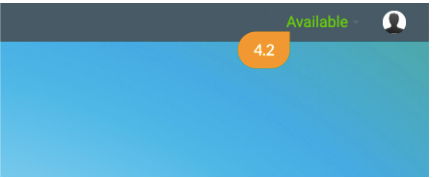
- In the Admin Dashboard “Agent Settings” > “Chat Agents” tab:
- Did you accidentally turn off the “Enable real time chat when an agent is online” switch?

- In the Admin Dashboard “Agent Settings” > “Chat Assignment” tab:
- Are you outside your configured “Hours of Operation?”

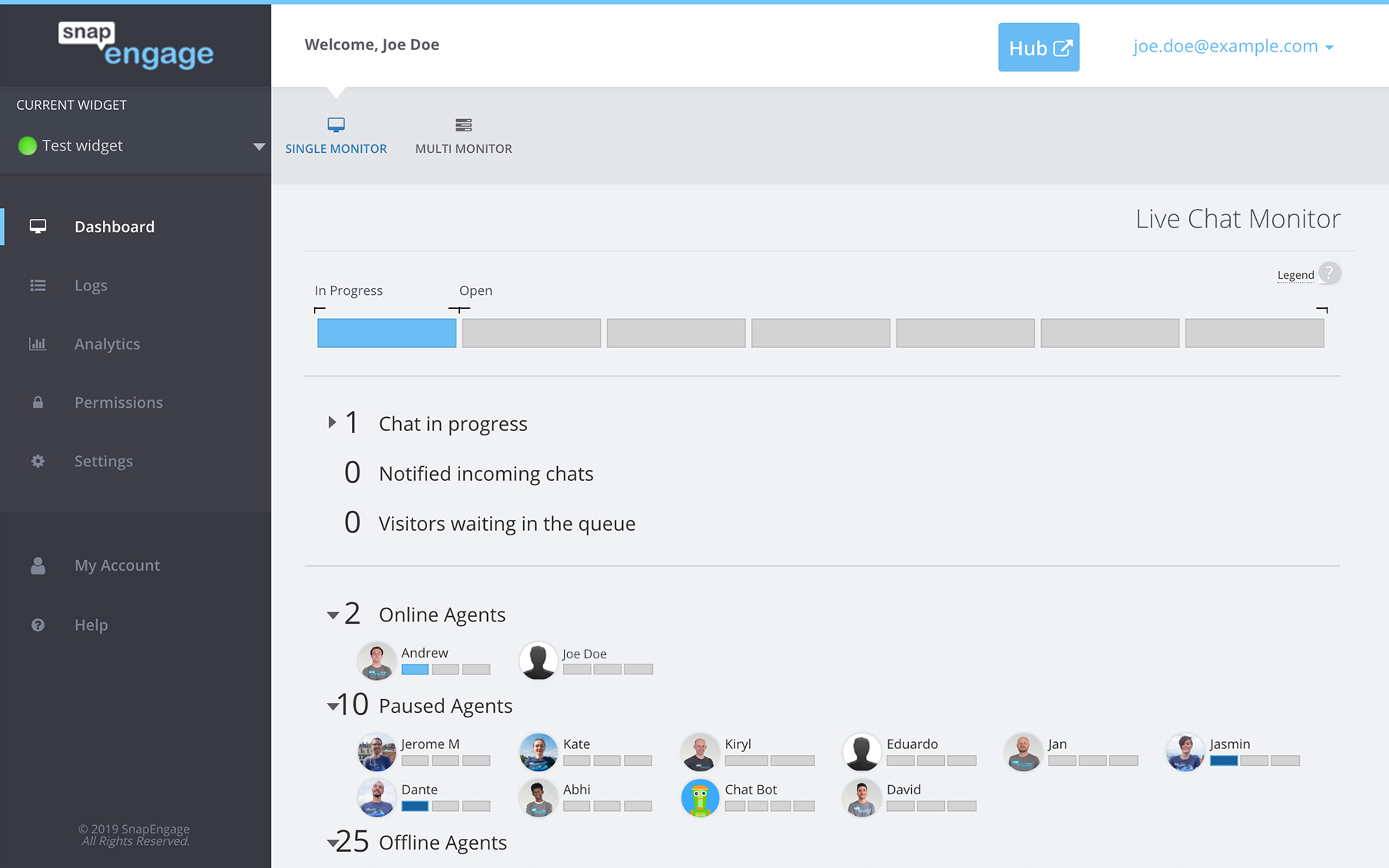
How do I know if my Agents are online?
- You can check your Agents’ status in the Dashboard. The displayed breakdown shows their current status.
How do I set up Proactive Chat rules?
Our new-and-improved Proactive Chat system is highly configurable, but also highly complex!
Learn about setting up basic Proactive Chat v2 rules.
Proactive Chat is still not working, what now?
If everything is setup correctly but you still have problems with Proactive Chat, don’t hesitate to to start a chat with our support team or send us a message via email to [email protected]. We are here to help!
Did you find this article helpful?

 (6 votes, average: 4.17 out of 5)
 Loading ...
Published May 25, 2012