Article Category: Integrations & Plugins


When integrating SnapEngage to your Freshdesk page you can automatically convert completed chat transcripts as tickets. You can also have offline requests be logged as tickets in Fresdesk and you can select with chat transcripts you would like to discard to not be converted as tickets. …

Full Article →

Operator variables can be used for Salesforce and Zendesk mapping as well as for the Post API. This feature allows you to enter information on the fly during a chat session and assign to a Ticket, Case, or Lead once you setup the mapping in your Integration settings. Now you can use any variable name you like taking dynamic chat variables to …

Full Article →

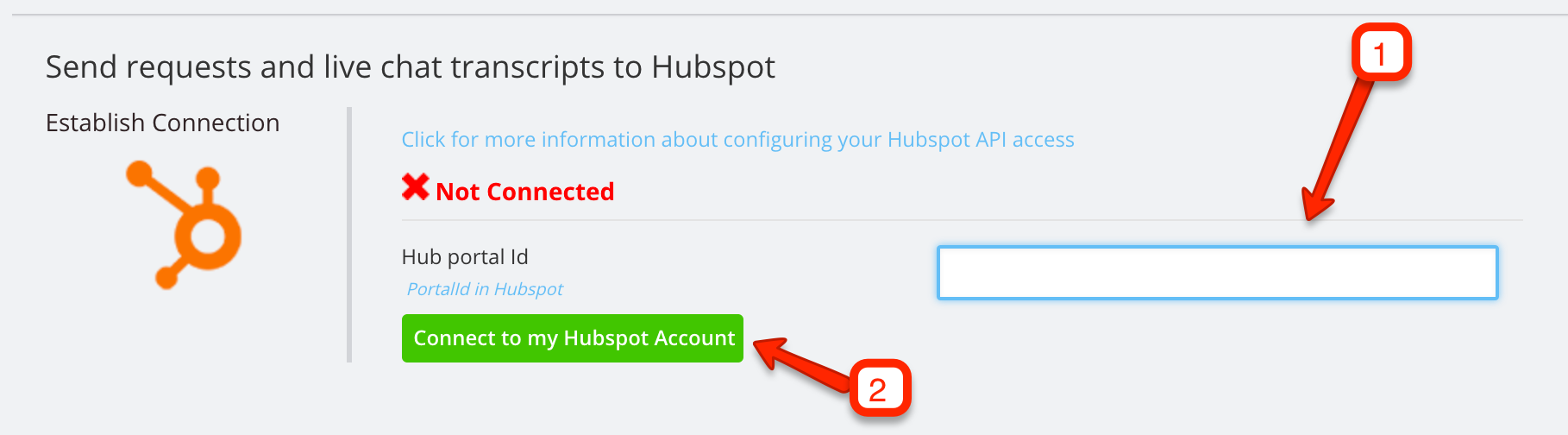
If you are currently using Hubspot you can capture all that great information from your SnapEngage chats and send it directly into the HubSpot system.

If you don’t have SnapEngage installed on your HubSpot website yet, follow the installation instructions found here.

Next, contact Lyntonweb to get an account setup with them.

After you have done the above two steps …

Full Article →

1. Log into your Jimdo account.

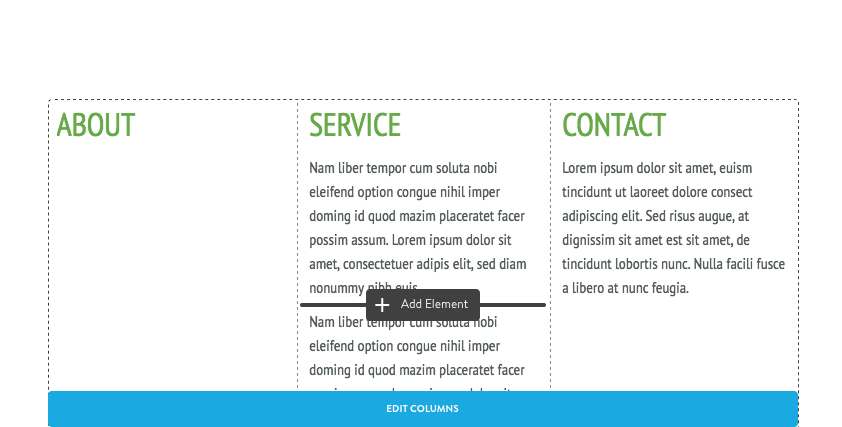
2. Hover over an existing element (such as text or a photo), you should see a plus sign to the left of that element.

3. Once you click on that plus sign, you’ll see the list of all of the elements, including the Widget/HTML element.

4. Click on the Widget/HTML element to add the SnapEngage …

Full Article →

Follow these three easy steps to incude SnapEngage on your UserVoice page:

1.) Log into your UserVoice account and click on ‘Settings’. You can then click on the ‘General’ tab and ‘Design’ link that is on the right hand side.

2.) Select ‘Custom’ and ‘Advanced — HTML/CSS template’

3.) In the JavaScript Snippets section you can add your SnapEngage widget …

Full Article →

It is now possible to assign Zendesk tag values while in a chat.
Imaging that you are chatting with one of your website visitor and you want to flag this specific request as a lead in Zendesk for later follow-up. You can now type /tag = lead in your preferred instant messaging client and the Zendesk ticket will …

Full Article →

You can use the Raw HTML module to add custom HTML code to a web page. This allows you to add images, links from other sites, and other content, such as widgets and YouTube videos. This article describes some ways to use the Raw HTML module.

Adding Third-Party Code

Navigate to your Page Manager.

User-added image

Choose View/Edit Page.

User-added image

Click …

Full Article →

SnapEngage will automatically notify you when your website visitors contact you. You can either receive offline requests and chat transcripts by email or directly in your prefered Help Desk, CRM or Bug Tracker.

If you would like to receive transcripts and messages in Help Scout then follow the steps below.…

Full Article →

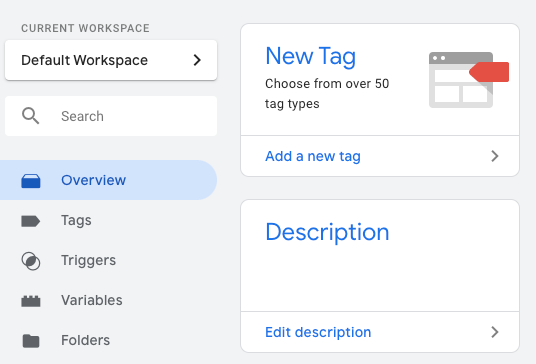
First, create a new tag with the SnapEngage code in the Tags manager.

Select the “Custom HTML tag” type and copy the SnapEngage code form the dashboard “Get the code” to the Google Tag Manager “HTML” box as shown here :

Google Tag Manager

The tag Firing Rules are to be setup based on your specific needs, but you will usually use the …

Full Article →

SnapEngage will automatically notify you when your website visitors contact you. You can either receive offline requests and chat transcripts by email or directly in your prefered Help Desk, CRM or Bug Tracker.

If you would like to receive transcripts and messages in Zendesk then follow the steps below.

1. Log into your configurator.
2. Select the intergrations tab.

3. …

Full Article →

SnapEngage will automatically notify you when your website visitors contact you. You can either receive offline requests and chat transcripts by email or directly in your preferred Help Desk, CRM or Bug Tracker.

If you would like to receive transcripts and messages in UserVoice then follow the steps below.

1. If you don’t already have a UserVoice account, Create a new one for

Full Article →

SnapEngage will automatically notify you when your website visitors contact you. You can either receive offline requests and chat transcripts by email or directly in your preferred Help Desk, CRM or Bug Tracker.

If you would like to receive transcripts and messages in SAP then follow the steps below.

1. Log into your configurator.
2. Select the intergrations tab.

3. Click …

Full Article →

SnapEngage will automatically notify you when your website visitors contact you. You can either receive offline requests and chat transcripts by email or directly in your prefered Help Desk, CRM or Bug Tracker.

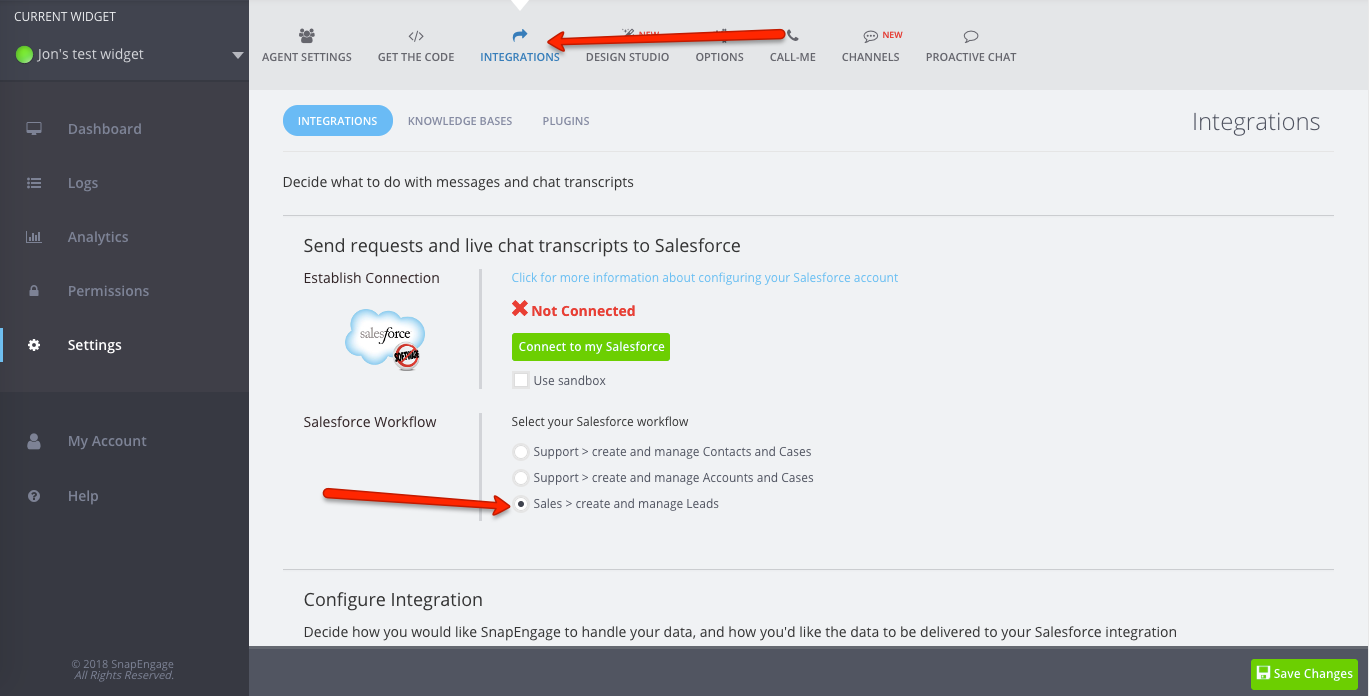
If you would like to receive transcripts and messages in Salesforce then follow the steps below.

1. Log into your configurator.
2. Select the intergrations tab.

Full Article →

SnapEngage will automatically notify you when your website visitors contact you. You can either receive offline requests and chat transcripts by email or directly in your prefered Help Desk, CRM or Bug Tracker.

If you would like to receive transcripts and messages in Pivotal Tracker then follow the steps below.

1. Log into your configurator.
2. Select the intergrations tab.

3. …

Full Article →

SnapEngage will automatically notify you when your website visitors contact you. You can either receive offline requests and chat transcripts by email or directly in your prefered Help Desk, CRM or Bug Tracker.

If you would like to receive transcripts and messages from your Open API then follow the steps below.

1. Log into your configurator.
2. Select the …

Full Article →

SnapEngage will automatically notify you when your website visitors contact you. You can either receive offline requests and chat transcripts by email or directly in your prefered Help Desk, CRM or Bug Tracker.

If you would like to receive transcripts and messages in Lighthouse then follow the steps below.

1. Log into your configurator.
2. Select the intergrations tab.…

Full Article →

SnapEngage will automatically notify you when your website visitors contact you. You can either receive offline requests and chat transcripts by email or directly in your prefered Help Desk, CRM or Bug Tracker.

If you would like to receive transcripts and messages in JIRA then follow the steps below.

1. Log into your configurator.
2. Select the intergrations tab.

3. Click …

Full Article →

SnapEngage will automatically notify you when your website visitors contact you. You can either receive offline requests and chat transcripts by email or directly in your preferred Help Desk, CRM or Bug Tracker.

If you would like to receive transcripts and messages in Highrise then follow the steps below.

1. Log into your configurator.
2. Select the intergrations tab.

3. Click …

Full Article →

SnapEngage will automatically notify you when your website visitors contact you. You can either receive offline requests and chat transcripts by email or directly in your prefered Help Desk, CRM or Bug Tracker.

If you would like to receive transcripts and messages in Fogbugz then follow the steps below.

1. Log into your configurator.
2. Select the intergrations tab.

3. …

Full Article →

SnapEngage will automatically notify you when your website visitors contact you. You can either receive offline requests and chat transcripts by email or directly in your preferred Help Desk, CRM or Bug Tracker.

If you would like to receive transcripts and messages in desk.com then follow the steps below.

1. Log into your configurator.
2. Select the intergrations tab.

3. Click …

Full Article →

SnapEngage will automatically notify you when your website visitors contact you. You can either receive offline requests and chat transcripts by email or directly in your prefered Help Desk, CRM or Bug Tracker.

If you would like to receive transcripts and messages in BatchBook then follow the steps below.

1. Log into your configurator.

2. Select the intergrations tab.…

Full Article →

SnapEngage will automatically notify you when your website visitors contact you. You can either receive offline requests and chat transcripts by email or directly in your preferred Help Desk, CRM or Bug Tracker.

If you would like to receive transcripts and messages by AutoLead then follow the steps below.

1. Log into your configurator

2. Select the intergrations tab

3. Click on …

Full Article →

SnapEngage will automatically notify you when your website visitors contact you. You can either receive offline requests and chat transcripts by email or directly in your prefered Help Desk, CRM or Bug Tracker.

If you would like to receive transcripts and messages by email then follow the steps below.

1. Log into your configurator

2. Select the intergrations tab

3. …

Full Article →

To install SnapEngage on a tumblr:

1. Go to http://www.tumblr.com/dashboard and log in.

2. Click the name of your blog at the top of the Dashboard or under the list icon at the top.

3. Click Customize.

4. Click “Edit HTML” below the theme thumbnail on the left.

5. Scroll to the bottom and insert the widget just before the closing

Full Article →

Setting up SnapEngage chat to connect to UserVoice only takes these few steps:

1. From the Integrations tab, select UserVoice.

2. Enter your UserVoice subdomain – <something>.uservoice.com/

Note: User should be an Admin for UserVoice subdomain entered in step #2.

3. Click on “Connect to my UserVoice account”

UV Integration

4. Sign in using your UserVoice username and password

5. Click …

Full Article →

This help article lists the fields that SnapEngage sets when you use the default Salesforce integration settings:

If you select: “I use Salesforce for Support. Create contacts and cases.”

Cases

Subject –> “Live Chat with <name>” Or “Support Request from <name>”

Description –> <initial chat message>, <geo location>, <coming from url>, <os/browser info>, <language>, <js/other variables>

Origin –> “Web”

SuppliedEmail –> …

Full Article →

While the ability to automatically map any SnapEngage data to a Salesforce standard or custom field is very useful, sometimes the information is not available before starting the chat. In this case, while on the phone (using the “Call Me” button) or in a chat, you can directly record important information provided by your visitor, to their profile by using …

Full Article →

If you use an Assignment Rule for Cases or Leads, you may need to configure these rules so the SnapEngage agent mapping feature will work correctly.

To check your Assignment Rules in Salesforce, follow these steps:

1. From your Salesforce account, select Settings

sf1

2. On the left side menu navigate to Assignment Rules, under App Setup –> Customize –> Leads

Full Article →

SnapEngage includes a handy feature to populate any information it captures to standard or custom fields in Zendesk.

In this example, we will show you how to load two types of information into Zendesk.
- The Web Browser used by the website visitor
- The account type of the user, made available by the application in a JavaScript variable.…

Full Article →

If you want to add the SnapEngage JavaScript code snippet to an older Joomla version you can see our installation guide here too: http://www.snapengage.com/install#joomla

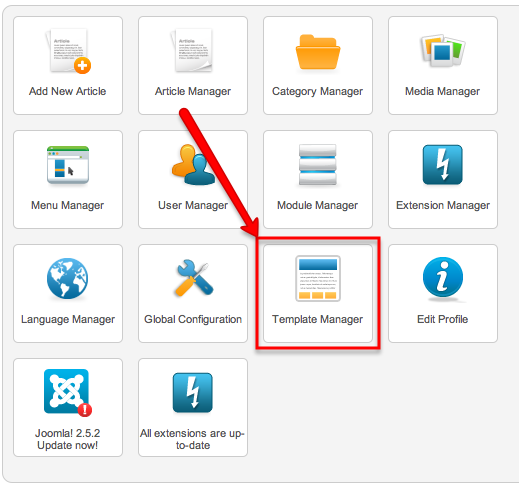
To install SnapEngage on Joomla 2.5 you first have to go to your Template Manager:

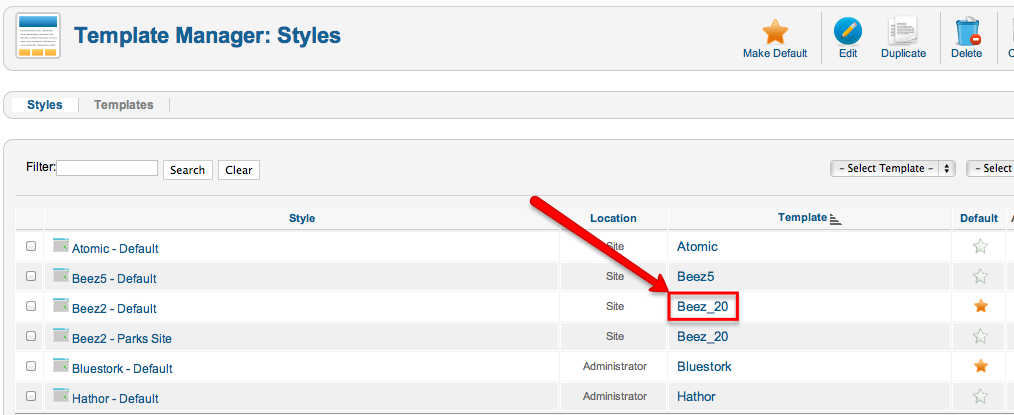
On the next page, click on the name of  the default template you have currently activated:

Next click on Edit Main Page …

Full Article →

To map an Agent to their profile in Zendesk, simply follow the steps below:

1. Go to your Live Chat tab in your configurator

2. Click on the Zendesk icon that will appear when you hover your mouse next to the agents telephone number

3. This will then dropdown a menu so you can select the Agents corresponding Zendesk account …

Full Article →

To map an Agent to their profile in Desk.com, simply follow the steps below:

Desk.com:

1. Go to your Agents tab in your configurator

2. Click on the Desk.com icon that will appear when you hover your mouse next to the agents telephone number


3. This will then dropdown a menu so you can select the Agents corresponding Desk.com …

Full Article →

To map an Agent to their account in SalesForce:

1. Click on the Agents link in your SnapEngage settings.

2. Select the Agent you would like to link to their Salesforce Account.

3. In the box labeled agent Salesforce account, begin typing the Agent’s name in the box. After a second or so you will see matching users from Salesforce.

Full Article →

In the Salesforce application, administrators can view how many API requests have been issued in the last 24 hours on the Company Information page via

–> Your Name | Setup | Company Profile | Company Information.

Administrators can also view a more detailed report of API usage over the last seven days by navigating to the Reports tab, selecting the …

Full Article →

Let’s walk through the process of adding a live chat button to your Zendesk Help desk page. This way, visitors can start a chat session right from Zendesk.


Include the SnapEngage Javascript.

1. Head over to the “Settings” tab and select the “Extensions” link.

2. Now let’s use the “Add Widget” link.

zendesk-add-widget

After clicking on “Add Widget” on the …

Full Article →

Simply, go to the “Plugins” section of your Settings and select the Get Contact OPEN API icon:

Next, click the “Enable get contact open API” check box, followed by entering your System Name and URL.
Click the “save” button and voila, if your credientials are correct, your integration using Get Contact OPEN API is now complete.

Open API

The web service you …

Full Article →

Simply, go to your “Plugins” tab of your configurator and select the RapLeaf icon:

pic7

Next, click the “Enable RapLeaf integration” check box, followed by selecting either the free version from RapLeaf or the version where you enter your RapLeaf API key.

pic6

Click the “Save” button and voila, if your credientials are correct, your integration with RapLeaf is now complete.…

Full Article →

Simply, go to your “Plugins” tab of your configurator and select the LeadFormix icon:

LF plugin

Next, click the “Enable LeadFormix integration in live chat” check box, followed by entering your LeadFormix username and API Key.

LF plugin 2

Click the “save” button and voila, if your credientials are correct, your integration with LeadFormix is now complete.…

Full Article →

Simply, go to your “Plugins” tab of your configurator and select the Join.me icon:

pic12

Next, click the “Enable join.me integration in live chat” check box, followed by entering your join.me account email and password.
Click the “validate join.me login” and voila if your credientials are correct, your integration with join.me is now complete. 

pic13

With the join.me plugin you can …

Full Article →

Simply select JIRA in the “Integrations” tab.

pic10

You can provide your server address, your login credential and specify the project where you want the transcripts to go.

In the advanced dropdown, you can also assign the ID for the ticket type and the email address to send a copy of the transcript to.

pic11

That’s it! You will now be able …

Full Article →

While Point2Agent does not allow you to add our JavaScript widget directly into your website code, you can add a special link that will allow your website visitors to engage with you on your website.

To create your special link:
1) Firstly get your widget id here to put into the {your_widget_ID} section below.
2) In your SnapEngage configurator, in …

Full Article →

Create an HTML file that will be used as the portal footer:
1) Using your preferred text editor, create a file: footer.txt
2) Copy and paste the SnapEngage JavaScript from the SnapEngage configurator “Get The Code” tab, into your footer.txt file

gtc23

3) Save the footer.txt file to your computer

Now configure your SalesForce Portal:
4) Launch Saleforce and navigate to …

Full Article →

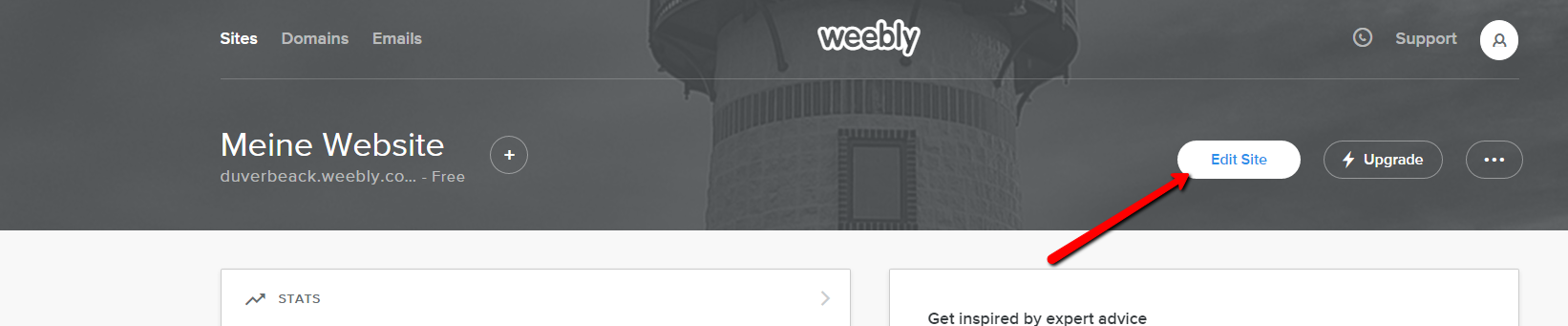
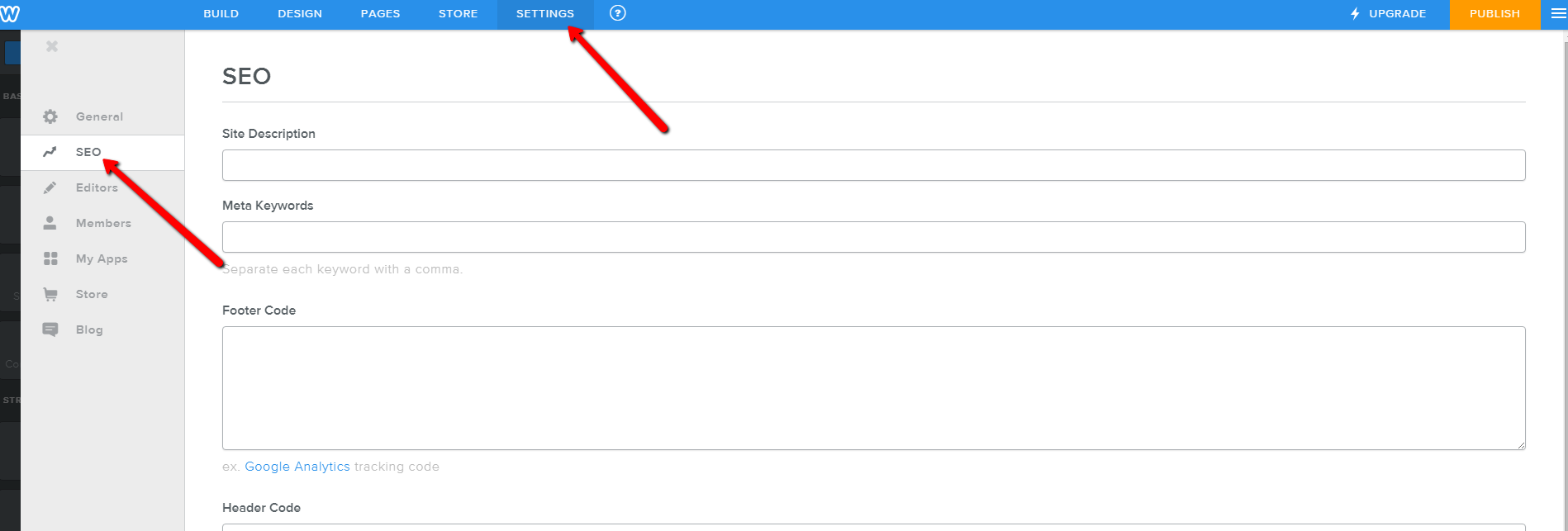
You can easily add SnapEngage Live Chat to your Weebly website. Find a test page here.

In your Weebly editor,

1) Go to the Settings tab

2) Select the Search Engine Optimization section.

3) Paste the SnapEngage code from the “Get the Code” tab, into the Footer area and click Save.


Full Article →

Point and click your way to professional quality landing pages. InstaPage is easy enough your grandma can use it, yet powerful enough your boss will approve.

Now you can easily add your SnapEngage live chat widget to your InstaPage landing pages, just follow the steps below!

1) Once you are logged in to Instapage, enter your title, choose your layout …

Full Article →

Unbounce is a self-serve hosted service that provides marketers doing paid search, banner ads, email or social media marketing, the easiest way to create, publish & test promotion specific landing pages without the need for IT or developers.

Once you have set up your live chat agents in the SnapEngage widget configurator, it is just a few easy steps to …

Full Article →

To get SnapEngage working on your Shopify store you just have to embed our JavaScript code into the Shopify Template like this:

Copy the JavaScript code from the ‘Get the code’ tab of your widget configurator and paste it in your ‘theme.liquid’, right above the </body> tag at the bottom.

You can find the find the ‘theme.liquid’ in your shopify …

Full Article →

It is possible to populate multiple tags from SnapEngage using the custom mapper. This will unfortunately override our default mapping, but it is possible to recreate it using the field ‘set-tags’.

To do this, you need to use the data source ‘Text’ and separate each tag by a space, then you can use the following special handler that will be replaced by …

Full Article →

While eBay does not allow you to add our JavaScript widget on your product listing, you can add a special link that will allow your customers to engage you on your product page.

As long as the eBay page was http, not https, our server will know where the visitor came from and will display the eBay page as the …

Full Article →

We now have an option to let you make the SnapEngage chat transcript visible to your customer in the Zendesk help desk ticket.

To use this option, you can you in the “Set destination” tab and select “Make chat transcript public (visible by customer).” in the “Zendesk advanced options” section:

Full Article →

With these few steps you can add your SnapEngage live chat widget to your Magento store.

1. Log in to your Magento account to manage your store.

2. Choose “System” from the menu.

3. Click on “Configuration” in the drop-down menu

4. In this configuration mask, choose “Design” on the left side and select the “Footer” Item in the middle

Full Article →

Your authentication token (or API Token) is a special code that allows services outside of Highrise to connect to your account with your permission.

Your Highrise authentication token can be found as follow:

  • - Login to your Highrise account using your personal URL (http://your-account.highrisehq.com).
  • - Click on the “My Info” link in the top right hand. You’ll be presented with

Full Article →

Your BatchBook API key allows services outside of BatchBook (like SnapEngage) to connect to your account with your permission.

Your BatchBook Integration API key can be found as follow:

  • Login to your BatchBook account using your personal URL (http://your-account.batchbook.com).
  • Click on the “Your Account” link in the top right corner. You’ll be presented with your personal account information.
  • Simply copy

Full Article →

In order to use third-party programs such as SnapEngage with Basecamp, you must first enable Basecamp API access.

To enable API access, first navigate to your Dashboard (https://{your-account}.basecamphq.com/account), then click on the Account tab:

You will automatically be on the first tab, which is “Payment/Plans”. If you scroll down on the page, you will see the “Basecamp API” section.

Please …

Full Article →

Desk.com API keys allows applications outside of Desk.com (like SnapEngage) to connect to your account with your permission. Your Desk.com API key, secret, token and token secret can be found by following this guide:

1. Log in to your Desk.com admin panel using your personal URL (http://your-account.assistly.com/admin).

2. Click on Settings:

3. From the left menu select API > My …

Full Article →

To change your facebook welcome message, simply go to your “Proactive Chat” tab in your SnapEngage configurator:

1) Enter in your welcome message you would like to see into “Display message”
2) Add the URL matching to be: http*://*/fb*
3) Click Save

4) Your change will now be reflected in your Facebook message:

Full Article →

To add the facebook plugin to capture your facebook fans chats:

1. Go to your “Plugins” tab of your configurator and click facebook

pic8

2. Click the “Add Chat to your Facebook fan page” button…. Note: you can only add the plugin to your fan page, not to your personal facebook page.

pic9

3. Login to your facebook fan page with your …

Full Article →